Xpath tools: Difference between revisions
Jump to navigation
Jump to search
mNo edit summary |
|||
| Line 49: | Line 49: | ||
</pre> | </pre> | ||
== | == XPath Browser extensions == | ||
[https://chrome.google.com/webstore/detail/xpath-helper/hgimnogjllphhhkhlmebbmlgjoejdpjl XPath Helper] | [https://chrome.google.com/webstore/detail/xpath-helper/hgimnogjllphhhkhlmebbmlgjoejdpjl XPath Helper] for {{Chrome}} | ||
# 不支援 {{kbd | key=<nowiki>file:///</nowiki>}} | # 不支援 {{kbd | key=<nowiki>file:///</nowiki>}} | ||
| Line 57: | Line 57: | ||
: https://planetoid.info/images/xpath_helper.jpg | : https://planetoid.info/images/xpath_helper.jpg | ||
[https://chrome.google.com/webstore/detail/selectorshub/ndgimibanhlabgdgjcpbbndiehljcpfh SelectorsHub] | [https://chrome.google.com/webstore/detail/selectorshub/ndgimibanhlabgdgjcpbbndiehljcpfh SelectorsHub] for {{Chrome}} | ||
# After adding it to browser, restart the browser. 安裝後,重新啟動瀏覽器 | # After adding it to browser, restart the browser. 安裝後,重新啟動瀏覽器 | ||
| Line 65: | Line 65: | ||
# To build your own xpath or CSS Selector, start typing in the selector input box. | # To build your own xpath or CSS Selector, start typing in the selector input box. | ||
[https://chrome.google.com/webstore/detail/natu-websync/aohpgnblncapofbobbilnlfliihianac/related Natu WebSync - Chrome 線上應用程式商店] | [https://chrome.google.com/webstore/detail/natu-websync/aohpgnblncapofbobbilnlfliihianac/related Natu WebSync - Chrome 線上應用程式商店] for {{Chrome}} | ||
# 開啟「開發人員工具」 | # 開啟「開發人員工具」 | ||
# 點選標籤「WebSync」-> 輸入 xpath 規則 | # 點選標籤「WebSync」-> 輸入 xpath 規則 | ||
[https://chrome.google.com/webstore/detail/css-selector/dobcgekgcmhjmfahepgbpmiaejlpaalc CSS Selector][https://css-selector-gadget.dllplayer.com/welcome] | [https://chrome.google.com/webstore/detail/css-selector/dobcgekgcmhjmfahepgbpmiaejlpaalc CSS Selector][https://css-selector-gadget.dllplayer.com/welcome] for {{Chrome}} | ||
* 直接點選網頁元素,則顯示 CSS Selector。點選 xpath 按鈕則顯示 xpath 路徑。 | * 直接點選網頁元素,則顯示 CSS Selector。點選 xpath 按鈕則顯示 xpath 路徑。 | ||
[https://addons.mozilla.org/zh-TW/firefox/addon/firebug/ Firebug] + [https://addons.mozilla.org/zh-TW/firefox/addon/firepath/ FirePath] for {{Fx}} | [https://addons.mozilla.org/zh-TW/firefox/addon/firebug/ Firebug] + [https://addons.mozilla.org/zh-TW/firefox/addon/firepath/ FirePath] for {{Fx}} | ||
# 選單: 工具 --> 網頁開發者 --> Firebug --> 開啟 Firebug | # 選單: 工具 --> 網頁開發者 --> Firebug --> 開啟 Firebug | ||
Revision as of 14:31, 6 November 2024
List of tools for xpath expression selection/query
Comparison of xpath tools
| Method | Pros | Cons |
|---|---|---|
| chrome extension XPath Helper | worked on online webpage | NOT work on offline file |
| Sublime xpath plugin | worked on offline file | NOT work on online webpage |
chrome javascript console
Chrome  javascript console
- 選單: 工具 -> 開發人員工具 -> Console
- 確認符合 XPath 規則的結果,例如 XPath 規則是 "//img",可在 Console 輸入 $x("//img") ,按 Enter。就會顯示符合 xpath 規則的結果[1][2]:
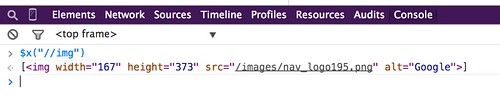
image hosted by flickr
擷取指定 XPath 的元素文字,清理後以換行分隔顯示。下方例子的 XPath 規則是 //div[@id="showvender"]/a
// 使用 document.evaluate 取得所有元素
const result = document.evaluate('//div[@id="showvender"]/a', document, null, XPathResult.ORDERED_NODE_SNAPSHOT_TYPE, null);

// 建立陣列來存放所有元素的文字
const textArray = [];

// 遍歷所有元素
for (let i = 0; i < result.snapshotLength; i++) {
    const element = result.snapshotItem(i);
    // 去除換行符號並加入陣列
    const cleanedText = element.textContent.replace(/[\n\r]+/g, '').trim();
    textArray.push(cleanedText);
}

// 用換行符號連接所有元素
console.log(textArray.join('\n'));
XPath Browser extensions
XPath Helper for Chrome
- 不支援 file:///
- 輸入 ctrl + shift + x 或點選工具列上的 x 圖示,開啟 XPath Helper console (顯示在網頁上方)
- 輸入 xpath 規則。就會凸顯符合 xpath 規則的網頁元件地方

SelectorsHub for Chrome
- After adding it to browser, restart the browser. 安裝後,重新啟動瀏覽器
- Open DevTools. 打開「開發人員工具」
- Click on SelectorsHub tab. 點選「元素」標籤,再點選最右邊的「SelectorsHub」
- Here it will show all possible xpath, selectors for inspected element.
- To build your own xpath or CSS Selector, start typing in the selector input box.
Natu WebSync - Chrome 線上應用程式商店 for Chrome
- 開啟「開發人員工具」
- 點選標籤「WebSync」-> 輸入 xpath 規則
CSS Selector[1] for Chrome
- 直接點選網頁元素,則顯示 CSS Selector。點選 xpath 按鈕則顯示 xpath 路徑。
Firebug + FirePath for Firefox 
- 選單: 工具 --> 網頁開發者 --> Firebug --> 開啟 Firebug
- 切換到 FirePath 標籤
- 輸入 xpath 規則。就會凸顯符合 xpath 規則的網頁元件地方
Sublime text editor
xpath plugin: "Sublime Text plugin for easier cursor navigation of XML and HTML files using XPath 1.0."
Steps
- Open the Command Palette
- Menu: Tools -> Command Palette
- or press the keyboard shortcut[3]: ctrl + shift + p on Win
 or command + shift + p on macOS
  )
)
- and select Xpath: Query document
- input the Xpath expression

Other tools
- XPath Expression Tester for XML [Last visited: 2020-06-09]
- Free Online XPath Tester / Evaluator for XML [Last visited: 2020-06-09]
- XPath online real-time tester, evaluator and generator for XML & HTML [Last visited: 2023-03-22]
Xpath syntax examples
- SVG //*[local-name() = 'svg']
- SVG elements //*[name()='svg']//*[name()='YOUR OBJECT'] [4]
References
- References
- ↑ Is there a way to get the xpath in google chrome? - Stack Overflow
- ↑ Evaluate and validate XPath/CSS selectors in Chrome Developer Tools | Yi Zeng’s Blog
- ↑ sublimetext3 - Sublime Text - XPath Plugin shortcut - Stack Overflow
- ↑ java - How to use xPath in Selenium WebDriver to grab SVG elements? - Stack Overflow
Related articles
Troubleshooting of ...
- PHP, cUrl, Python, selenium, HTTP status code errors
- Database: SQL syntax debug, MySQL errors, MySQLTuner errors or PostgreSQL errors
- HTML/Javascript: Troubleshooting of javascript, XPath
- Software: Mediawiki, Docker, FTP problems, online conference software
- Test connectivity for the web service, Web Ping, Network problem, Web user behavior, Web scrape troubleshooting
Template