Total Commander: Difference between revisions
Jump to navigation
Jump to search
(+Colors by file type) |
|||
| Line 20: | Line 20: | ||
* [http://www.ghisler.ch/board/viewtopic.php?p=152662 Total Commander :: View topic - cm_CopyNamesToClip with no extension] (2008) | * [http://www.ghisler.ch/board/viewtopic.php?p=152662 Total Commander :: View topic - cm_CopyNamesToClip with no extension] (2008) | ||
== | == Configure custom layout == | ||
<pre> | <pre> | ||
| Line 81: | Line 81: | ||
=== Troubleshooting === | === Troubleshooting === | ||
* [http://errerrors.blogspot.com/2007/09/new-cursor-movement-mode-is-not-work.html Err: New cursor movement mode was not work (Total Commander 7.02a)] | * [http://errerrors.blogspot.com/2007/09/new-cursor-movement-mode-is-not-work.html Err: New cursor movement mode was not work (Total Commander 7.02a)] | ||
== Colors by file type == | |||
I prefer marked the file type e.g. {{kbd | key=<nowiki>*.bak</nowiki>}} with gray color. Steps: [http://www.ghisler.ch/board/viewtopic.php?p=197931 Total Commander :: View topic - Colors by file type] | |||
[[Category:Software]] | [[Category:Software]] | ||
[[Category:Image hosted by external service]] | [[Category:Image hosted by external service]] | ||
Revision as of 10:46, 6 April 2018
Total Commander is the software for file management. The customized settings and layout (two columns) I suggested was as follows:
| Total Commander | v.8.52a |
Quick to rename file name with F2
Step 1: Configuration --> Options --> Operation: Select only the file name when renaming (not the extension)
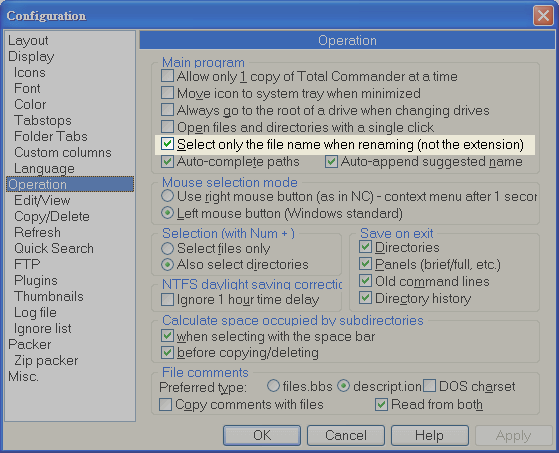
- Image hosted at flickr
Step 2: Configuration --> Options --> Misc: Hotkey: F2 mapping to the command cm_RenameOnly --> click the green V to apply the configuration
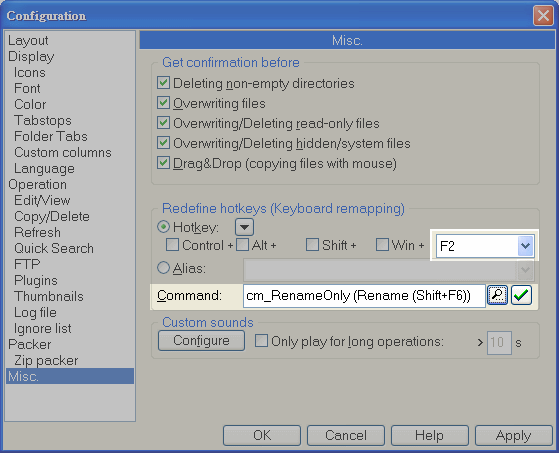
- Image hosted at flickr
Step 3: Select a file
- Press F2 once: Select only the file name when renaming (not the extension)
- Press F2 twice: Select the file name and the extension when renaming
further reading
Configure custom layout
Caption  Width  Align    Field contents               example
Name     225    <-       Name                         filename
Ext      20     <-       Ext                          ext
size     30     ->       [=tc.size]                   12,345 (Bytes)
create   50     <-       [=tc.writedate. yMD h:m]     110305 00:00
access   45     <-       [=tc.accessdate.yMD]         110305
- create: The date when the file was created
- access: The date when the file was accessed recently. Access means the file was opened, saved or moved to other location possibiliy.
Cursor movement mode of Total Commander
| Total Commander | v.9.12 |
Purpose
Go to the parent folder or enter the folder more easy by the keyboard/cursor movement:
(1) go to the parent folder
- Press ← will jump to the top of folder [..]
- At the top of folder [..], Press ← will go to the parent folder
(2) enter the sub folder
- Press → will open sub folder or open the archive file under cursor.
Steps
New cursor movement mode in the [Configuration] region
- Menu -> Configuration -> Change Settings Files Directly
- Edit %APPDATA%\GHISLER\WINCMD.INI
- add the following line (note: not insert after this line [FileSystemPlugins64] ...)
[Configuration]
SpecialCursorMovement=3
...
...
[FileSystemPlugins64]
...
- Save the modified WINCMD.INI file and restart the Total Commander
Instruction from official manual
New cursor movement mode. Sum of the following:
	1: Left key jumps to first file, right key to last
	2: Left key goes one directory up, right key opens directory/archive under cursor.
	4: Override horizontal scrollbar in custom columns view. If this option isn't set, the cursor will jump only to the first file if the horizontal scrollbar is already at the leftmost position.
	8: Jump one page up/down instead of jumping to the first/last file
- (from the official HELP file -> title: Settings in the file wincmd.ini )
- 3 means
- 'Left key' jumps to first file, and press twice 'Left key' will go one directory up
- 'Right key' will open directory/archive under cursor.
Troubleshooting
Colors by file type
I prefer marked the file type e.g. *.bak with gray color. Steps: Total Commander :: View topic - Colors by file type