How to use filezilla: Difference between revisions
m 1個修訂 |
No edit summary |
||
| (13 intermediate revisions by 2 users not shown) | |||
| Line 1: | Line 1: | ||
FTP 檔案傳輸軟體 FileZilla 使用教學,與 FTP 技術問題排除說明。 | |||
== 執行 | == 下載 FileZilla == | ||
# 點擊 | # 首先打開瀏覽器連結至 [https://filezilla-project.org/download.php?type=client FileZilla] | ||
# | # 點選 Download FileZilla Client 按鈕,可以直接下載安裝檔。如果需要免安裝版本,則點選網頁下方「Show additional download options」下載 FileZilla_版號_win64.zip | ||
# | # 下載後安裝 | ||
== 執行 FileZilla == | |||
# 點擊 FileZilla 在桌面上建立的捷徑 | |||
# 主機: 輸入 FTP 伺服器的 IP 或 domain name | |||
# 使用者名稱: 輸入使用者名稱 ( FTP 帳號) | |||
# 密碼:輸入帳號密碼 | # 密碼:輸入帳號密碼 | ||
# 連接埠(port) | # 連接埠 (port):通常不用輸入,會自動輸入 21。如果使用 SFTP 則需要自行修改。 | ||
# | # 然後按「快速連線」按鍵,就會登入 FTP 站 | ||
== FileZilla 設定 == | |||
* 選單: 傳輸 -> 勾選「保留傳輸檔案的時間戳記」,方便跟電腦端的檔案比較。 | |||
== ftp問題排解 == | == ftp問題排解 == | ||
{{:FTP problems}} | |||
[[Category:Software]] | [[Category:Software]] | ||
Latest revision as of 14:32, 28 July 2022
FTP 檔案傳輸軟體 FileZilla 使用教學,與 FTP 技術問題排除說明。
下載 FileZilla[edit]
- 首先打開瀏覽器連結至 FileZilla
- 點選 Download FileZilla Client 按鈕,可以直接下載安裝檔。如果需要免安裝版本,則點選網頁下方「Show additional download options」下載 FileZilla_版號_win64.zip
- 下載後安裝
執行 FileZilla[edit]
- 點擊 FileZilla 在桌面上建立的捷徑
- 主機: 輸入 FTP 伺服器的 IP 或 domain name
- 使用者名稱: 輸入使用者名稱 ( FTP 帳號)
- 密碼:輸入帳號密碼
- 連接埠 (port):通常不用輸入,會自動輸入 21。如果使用 SFTP 則需要自行修改。
- 然後按「快速連線」按鍵,就會登入 FTP 站
FileZilla 設定[edit]
- 選單: 傳輸 -> 勾選「保留傳輸檔案的時間戳記」,方便跟電腦端的檔案比較。
ftp問題排解[edit]
技術疑難排除 FTP 問題
- 建議使用FTP 傳檔軟體,例如 FIleZilla (找其他 FTP 軟體)而非 Internet Explorer

解決 FTP 使用者無法登入 530 Login or password incorrect[edit]
- 帳號密碼輸入錯誤 (1) 有時候密碼在複製的時候,多複製了半形空白,使得密碼輸入錯誤、(2) 檢查大寫燈是否有亮
指令: 	USER 帳號名稱
回應: 	331 Password required for 帳號名稱
指令: 	PASS ***
回應: 	530 Login or password incorrect!
錯誤: 	嚴重錯誤: 無法連線到伺服器
狀態: 	已從伺服器離線
- 部分伺服器有同一時間的連線數限制,請關閉多餘連線視窗或連線分頁(label)
- 無法連線到伺服器,錯誤訊息如下。可能因為遠端伺服器防火牆沒有允許連線到 FTP 21 port,需要請對方網管或系統管理員處理。
狀態: 	正在連線到 IP:21...
錯誤: 	20 秒後無動作, 連線逾時
錯誤: 	無法連線到伺服器
狀態: 	正在等待重試...
解決 FTP 使用者無法登入 請選擇正確的協定[edit]
- 選擇錯誤的檔案協定,請跟管理者確定是 FTP 或 SFTP ?
狀態: 	正在連線到 IP:Port...
狀態: 	連線已建立, 正在等候歡迎訊息...
回應: 	SSH-2.0-OpenSSH_6.6.1
錯誤: 	無法建立 FTP 連線到 SFTP 伺服器. 請選擇正確的協定.
錯誤: 	嚴重錯誤: 無法連線到伺服器
解決 FTP 使用者無法登入 20 秒後無動作, 連線逾時[edit]
錯誤訊息
狀態: 	正在連線到 FTP 伺服器...
回應: 	fzSftp started, protocol_version=9
指令: 	open "帳號@FTP 伺服器" 22
錯誤: 	20 秒後無動作, 連線逾時
錯誤: 	無法連線到伺服器
狀態: 	正在等待重試...
解決方法:請管理者檢查帳號是否正確
解決 FTP 使用者可以登入,但是沒法看到目錄清單[edit]
可以登入(沒有顯示密碼錯誤的訊息)到ftp伺服器,但是沒法看到目錄清單
- 確定那不是空目錄 (管理者可以在使用者的檔案夾內上傳 welcome.txt 檔案,以利日後可能障礙排除的依據)
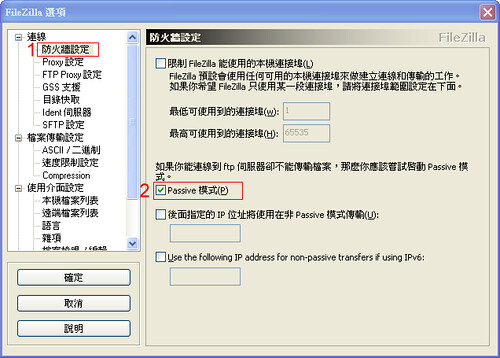
- 登出FTP伺服器,啟用(或關閉)傳輸模式為Passive模式 (如果原本勾選「被動模式」,則改為切換「主動模式」) , 下圖為FileZilla的設定圖示。 Although you log in the ftp server successfully you can not see the list of files or directories, please switch the transfer mode between PASV or PORT mode.
- Filezilla上方工具列:編輯 -> 設定 -> 連線: 傳輸模式在被動模式或主動模式之間切換
- Image hosted at flickr
- 其他軟體設定: IE的設定圖示、CuteFtp的設定圖示、SmartFTP 2.0 的設定圖示
解決 FTP 使用者可以登入,但是重複要求密碼[edit]
CuteFTP可以登入,但是重複要求密碼 --> 資料連線類型: 請選擇PASV(passive)模式,請見CuteFtp的設定圖示。
解決 FTP 使用者檔案傳輸失敗[edit]
可能的原因
- 要傳輸的MS Word檔案還在開啟狀態,建議先關閉MS Word檔,再進行傳輸。
- 部分ftp server不允許中文字、特殊字(例如% @ #)或檔名中有空白等,請使用英文字或數字。
- 副檔名前有多餘的句點,例如 filename..doc 請改成 filename.doc
- 檔名太長
- 部分伺服器有同一時間的連線數限制,請關閉多餘連線視窗或連線分頁(label)
- ftp client的中文支援不佳,導致部分中文字串無法順利判讀
- 網路傳輸品質不穩
- 對方伺服器的硬碟已滿
解決 FTP 伺服器端問題[edit]
- 該FTP 伺服器未啟用服務。可透過CurrPorts等工具檢查是否有程式佔用了 port 21 (FTP) 或 port 22 (SFTP)。
- 建議在使用者家目錄放一個 welcome 純文字檔案,方便連線除錯,確認遇到連線問題時,是否是完全無法瀏覽資料夾目錄。
- 防火牆
- 硬體防火牆
- 電腦防火牆: (windows 2008 server) 控制台\系統及安全性\Windows 防火牆 -> 具有進階安全性的 Windows 防火牆 -> 開放 FTP server 程式可以連線
狀態:	正在連線到 IP ...
狀態:	連線已建立, 正等候歡迎訊息...
錯誤:	無法連線到伺服器
FTP glossary terms[edit]
- user home directory: the home directory (root path) when user logged into the FTP server
permission[edit]
basic permission (from FileZilla Server):
- Files: Read
- Directories: List & List Subdirs
case1 : allow user upload file and overwrite the same file uploaded
- Files: Read, Write, Delete, Append
case2 (for temporally upload purpose): allow user upload file and overwrite the same file uploaded but cannot see the file list
- Files: Read, Write, Delete, Append
- Directories: Not allow List & List Subdirs
trivial case 1: allow user upload file but can not overwrite the same file uploaded
- Files: Read, Write, (Append)