How to setup my system path: Difference between revisions
m Text replacement - "[[Alternative_Linux_commands" to "[[Linux commands" |
mNo edit summary Tags: Mobile edit Mobile web edit |
||
| Line 1: | Line 1: | ||
如何設定系統 PATH | |||
作業系統 | 作業系統 | ||
== WIndows 如何設定系統 PATH == | |||
* Windows XP: Windows 檔案總管 -> 在「我的電腦」按滑鼠右鍵 -> 選擇選單的「內容」 --> 「系統內容」視窗 -> 切換到「進階」標籤 -> 點選「環境變數」按鈕 | * Windows XP: Windows 檔案總管 -> 在「我的電腦」按滑鼠右鍵 -> 選擇選單的「內容」 --> 「系統內容」視窗 -> 切換到「進階」標籤 -> 點選「環境變數」按鈕 | ||
* Windows 10: Windows 檔案總管 -> 在「本機」按滑鼠右鍵 -> 選擇選單的「內容」 --> 檢視電腦的基本資訊 --> 點選「進階系統設定」連結 --> 「系統內容」視窗 -> 切換到「進階」標籤 -> 點選「環境變數」按鈕 | * Windows 10: Windows 檔案總管 -> 在「本機」按滑鼠右鍵 -> 選擇選單的「內容」 --> 檢視電腦的基本資訊 --> 點選「進階系統設定」連結 --> 「系統內容」視窗 -> 切換到「進階」標籤 -> 點選「環境變數」按鈕 | ||
| Line 16: | Line 18: | ||
如何驗證新的路徑設定: {{kbd | key= echo %PATH%}} ({{Win}}) | 如何驗證新的路徑設定: {{kbd | key= echo %PATH%}} ({{Win}}) | ||
== Linux 如何設定系統環境變數 == | |||
Linux 如何設定系統環境變數、環境變量 (environment variable) | |||
假設你已經把 Java 裝在了這個路徑上:(/usr/lib/jvm/jjava-1.8.0-openjdk-1.8.0.402.b06-1.el7_9.x86_64/jre/bin),意味著你的 Java 執行文件位置是在 /usr/lib/jvm/java-1.8.0-openjdk-1.8.0.322.b06-2.el8_5.x86_64/jre/bin/java。在這種情況下,你能通過 bash shell 或是編寫腳本的方式,來指定 JAVA_HOME 環境變量,如下所示:<ref>[https://www.digitalocean.com/community/tutorials/how-to-install-java-on-centos-and-fedora How To Install Java on CentOS, Rocky Linux, RHEL, and Fedora | DigitalOcean]</ref> | |||
<pre> | |||
$ sudo sh -c "echo export JAVA_HOME=/usr/lib/jvm/java-1.8.0-openjdk-1.8.0.402.b06-1.el7_9.x86_64/jre >> /etc/environment" | |||
</pre> | |||
相關資料 | == 相關資料 == | ||
* [http://www.windowsitpro.com/Article/ArticleID/48074/48074.html How can I add a new folder to my system path?] | * [http://www.windowsitpro.com/Article/ArticleID/48074/48074.html How can I add a new folder to my system path?] | ||
* [[MS Windows Explorer]]: Windows檔案總管的捷徑屬性 與 Windows2000/XP環境變數 | * [[MS Windows Explorer]]: Windows檔案總管的捷徑屬性 與 Windows2000/XP環境變數 | ||
* [[Linux commands#specify_the_location_where_Linux_or_MS-DOS_looks_when_using_a_command | specify the location where Linux or MS-DOS looks when using a command]] | * [[Linux commands#specify_the_location_where_Linux_or_MS-DOS_looks_when_using_a_command | specify the location where Linux or MS-DOS looks when using a command]] | ||
[[Category:System]] [[Category:Windows]] | == 參考資料 == | ||
<references /> | |||
[[Category: System]] [[Category: Windows]] | |||
Revision as of 17:45, 17 February 2024
如何設定系統 PATH
作業系統
WIndows 如何設定系統 PATH
- Windows XP: Windows 檔案總管 -> 在「我的電腦」按滑鼠右鍵 -> 選擇選單的「內容」 --> 「系統內容」視窗 -> 切換到「進階」標籤 -> 點選「環境變數」按鈕
- Windows 10: Windows 檔案總管 -> 在「本機」按滑鼠右鍵 -> 選擇選單的「內容」 --> 檢視電腦的基本資訊 --> 點選「進階系統設定」連結 --> 「系統內容」視窗 -> 切換到「進階」標籤 -> 點選「環境變數」按鈕
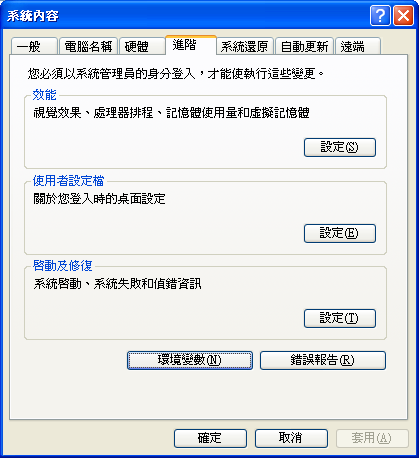
- (Image host on Flickr)
- 「環境變數」視窗 -> 點選「系統變數」的「Path」 -> 點選「編輯」按鈕
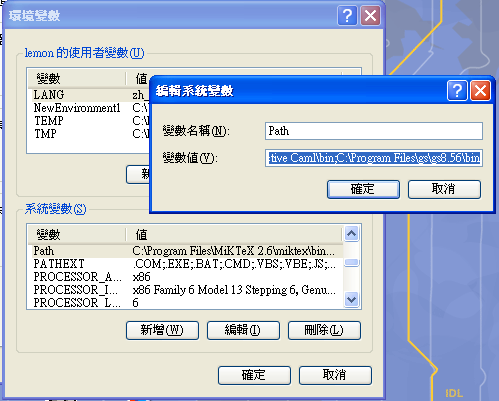
- (Image host on Flickr)
Path內有多個資料夾路徑。不同資料夾用分號(;)間隔,例如
C:\Program Files\MiKTeX 2.6\miktex\bin;c:\usr\bin;C:\usr\site\bin;C:\usr\bin;
如果使用命令提示字元,需要關閉再重開啟命令提示字元,才能套用新的路徑設定。
如何驗證新的路徑設定: echo %PATH% (Win  )
)
Linux 如何設定系統環境變數
Linux 如何設定系統環境變數、環境變量 (environment variable)
假設你已經把 Java 裝在了這個路徑上:(/usr/lib/jvm/jjava-1.8.0-openjdk-1.8.0.402.b06-1.el7_9.x86_64/jre/bin),意味著你的 Java 執行文件位置是在 /usr/lib/jvm/java-1.8.0-openjdk-1.8.0.322.b06-2.el8_5.x86_64/jre/bin/java。在這種情況下,你能通過 bash shell 或是編寫腳本的方式,來指定 JAVA_HOME 環境變量,如下所示:[1]
$ sudo sh -c "echo export JAVA_HOME=/usr/lib/jvm/java-1.8.0-openjdk-1.8.0.402.b06-1.el7_9.x86_64/jre >> /etc/environment"
相關資料
- How can I add a new folder to my system path?
- MS Windows Explorer: Windows檔案總管的捷徑屬性 與 Windows2000/XP環境變數
- specify the location where Linux or MS-DOS looks when using a command